IPTV Stream Player Basics, Choose the Right App, Set Up, Fix
IPTV Stream Player Basics, Choose the Right App, Set Up, Fix
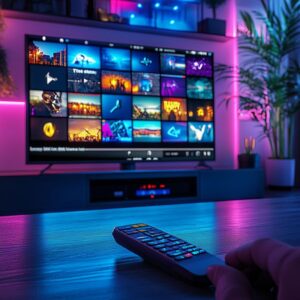
IPTV Stream Player is an app that plays internet TV streams. You feed it a playlist (often an M3U or a URL), it pulls in channels, and it can also show a schedule (EPG) so you know what's on now and what's next.
This post keeps it practical and safety-minded. You'll learn how to pick a solid player app, set it up the right way, and fix common headaches like buffering, login errors, or missing channels. Along the way, terms like playlist, M3U, EPG, URL, and buffering get plain-English explanations, so you don't have to guess what anything means.
What an IPTV stream player actually is (and what it is not)
An IPTV Stream Player is software (usually an app on a TV box, smart TV, phone, tablet, or computer) that organizes and plays TV streams you already have access to. Think of it as the screen and controls, not the subscription.
Just as important, a player usually does not come with channels. It doesn't "unlock" content by itself, and it can't create streams out of thin air. Instead, it loads a playlist or login details from a source, then decodes and displays what that source provides.
There are plenty of legit uses. For example, you might play free, legal channels, a paid IPTV service you're authorized to use, or even streams on your own home network. The player is simply the tool that makes those streams watchable and manageable.
The three parts that make IPTV work: source, playlist, and player
IPTV Stream Player works as a simple chain:
- Source (service or stream host): This is where the channels and videos actually live. It could be a provider you pay for, a free legal stream source, or a server on your local network.
- Playlist (file or link): This is the "menu" of what's available, including channel names and stream addresses (often an
M3Ulink). - Player (the app): This reads the playlist, connects to the source, then plays the video with controls like buffering settings, subtitles, and favorites.
A quick analogy helps. The playlist is a cookbook, it lists what you can "make." The player is the stove, it's the thing that actually cooks and serves it. Without ingredients (the source), neither one gets you dinner.
Common file types and terms you will see: M3U, Xtream Codes, and EPG
Once you open most IPTV Stream Player apps, you'll see a few setup options again and again. Here's what they mean in plain English.
M3U (or M3U URL) is a playlist format. It's basically a channel list that points your player to stream addresses. Sometimes you'll get it as a downloaded file, other times as a link you paste into the app.
Xtream Codes API is a login-style setup method. Instead of importing an M3U list, you enter:
- Server URL
- Username
- Password
Many people prefer this because it often pulls channels, VOD, and the guide in one go.
EPG (Electronic Program Guide) is the schedule data. It's what fills in "what's on now" and "what's next." Without a working EPG source, your channels may play fine, but the guide can look blank or wrong.
You'll also see these labels in many players:
- VOD (Video on Demand): A library of movies and shows you start anytime.
- Catch-up: Recently aired programs you can replay for a limited time (if your source offers it).
Must-have features that make daily watching easier
Small features decide whether an IPTV Stream Player feels smooth or frustrating after a week. The goal is simple: fewer taps, fewer menus, less hunting.
Here are the features that tend to matter most in real life:
- Favorites: Saves your go-to channels, so you stop scrolling long lists every night.
- Recent channels: Lets you bounce between two games or flip back to the last news channel in one click.
- Fast search: Helps when your playlist has hundreds (or thousands) of channels and VOD titles.
- Subtitles and audio tracks: Essential for bilingual households, late-night watching, and sports feeds with multiple commentary options.
- EPG support (guide data): Makes live TV feel like live TV, with "now" and "next" info that actually helps you choose.
- Catch-up support (if your source offers it): Perfect when you miss the first 15 minutes, or want last night's episode without digging.
- Parental controls: Keeps kid profiles clean, blocks categories, or locks content behind a PIN.
- Multi-screen (if supported): Handy for sports weekends, as long as your provider and device can handle it.
- Picture-in-picture on mobile: Keeps the stream playing while you text, browse, or check scores.
- Backup or export settings: Saves time when you switch devices, reinstall an app, or help a family member set theirs up.
TV users should also look for a remote-friendly design. Big buttons, clear focus highlights, and predictable "Back" behavior matter on a couch. A player can have every feature on paper, but if the guide is cramped or the menus feel slippery, it won't last in your home.
Set up your IPTV stream player in minutes, without guesswork
Setting up an IPTV Stream Player should feel like plugging in a lamp, not rewiring your house. Most apps ask for the same inputs, and once you know where they live, the rest is just a few taps. Below are two common setup paths, M3U playlist import and IPTV Stream Player Codes style login.
Before you start, grab your details and keep them private. A playlist link or login can work like a key to your account, so treat it like one.
Step-by-step setup using Xtream Codes style login
IPTV Stream Player Codes style login (often shown as Xtream API or Login with Xtream Codes) usually feels cleaner because you enter three fields and let the app build everything, live TV, VOD, and series.
Use this quick setup order:
- Install and open your IPTV Stream Player.
- Choose Xtream Codes, API Login, or XC Login (wording varies).
- Enter your details:
- Server URL: This often looks like
- Username
- Password
- Tap Login or Add User, then let the app sync content.
A few small checks prevent most login failures:
- Double-check
httpvshttpsbecause some servers only accept one. - Remove trailing spaces after pasting, especially on TVs where the cursor hides at the end.
- Expect the first sync to take longer because the app is pulling categories, icons, and VOD lists.
Once it finishes, test one live channel and one VOD title. If those work, you're set. After that, lock down your details the same way you would any account, keep them in a password manager, avoid screenshots, and don't share the login with strangers.